Lens Tracking (FreeD)
This page details the options for setting up lens tracking in FreeD. This is the recommended method.
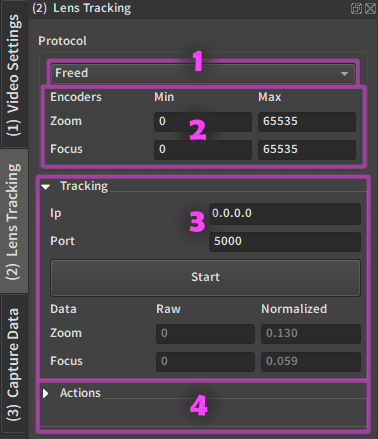
1. Tracking Protocol
This dock is accessible from the Capture step.
Possible values:
2. Encoder Bounds
Set the minimum and maximum values of the encoder.
You should start tracking (3.) before setting these at it will be easier with the value received displayed just under.
Go to one extreme on the camera lens, write down the value displayed in the tracking panel (3.), then go to the other extreme and write that value.
Note
It is not necessary to be precise to the digit, but the overall scale should be matched.
The actual bounds can change a bit at random with time, so the normalized value can be a bit above 1 or below 0. This is normal and will not affect the result in a meaningful way.
3. Tracking Receiver
Warning
This assumes a tracking system has been configured on the camera to calibrate, and it currently sends FreeD data to the computer running EZprofile on a specific port. If you own an EZtrack hub and don't know how to do this, look at Setting Up EZtrack for EZprofile.
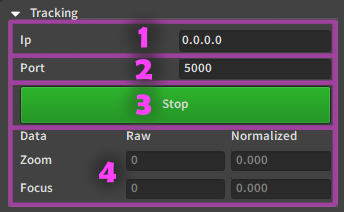
3.1. IP
IP address of this computer. In most cases leave 0.0.0.0, the receiver should understand (0.0.0.0 means "any IPv4 address at all").
3.2. Port
Port on which to receive FreeD messages. This is the port that should be given along with the true IP address to the tracking apparatus.
3.3. Start/Stop
Once IP and Port have been configured, use this button to toggle the FreeD receiver. The fact that the button is green only indicates that the receiver is running, not that it is actually receiving messages. To check this, you can look at the Preparation Table, which should have lit up. Also the values under in (3.1.4.) should move when changing zoom or focus on the lens.
3.4. Received values
Displays the raw lens values received in real time.
4. Remote Control Actions
see Using a SteamVR controller as remote
Back to capture workflow: Capture Workflow